
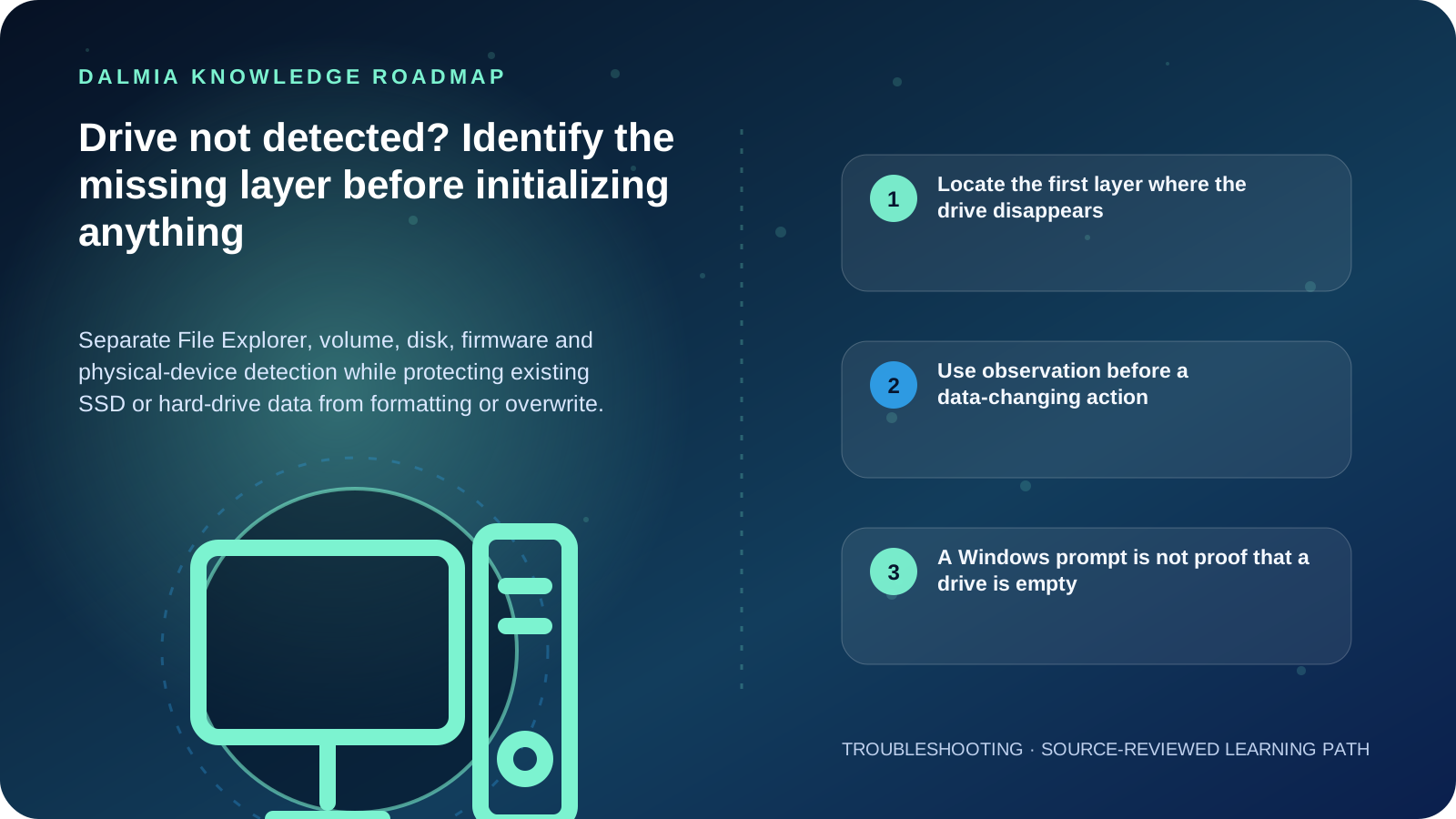
First decide whether the drive is absent only from File Explorer, absent from Windows Disk Management, or absent from the computer's supported firmware or hardware diagnostics. A new empty drive may need an online state, partition and drive letter, but an existing drive with important data must not be initialized, formatted, repartitioned or repeatedly repaired just because Windows offers the option. Record the exact status and stop powering a drive that clicks, scrapes, disappears repeatedly or shows physical distress.
Locate the first layer where the drive disappears
| Observed state | What it means | Safe next question |
|---|---|---|
| Visible in File Explorer | The volume has a usable path or letter | Is the issue one folder, permission or application? |
| Visible in Disk Management but not Explorer | Windows sees a disk or volume | Is it offline, missing a letter, unallocated or showing an error? |
| Visible in firmware/diagnostics but not Disk Management | Hardware detection exists below Windows | Does the exact system require a supported storage driver or configuration? |
| Absent from firmware and Windows | Connection, power, compatibility or device failure is possible | Is it external, newly installed or previously working? |
| Clicks, scrapes, resets or vanishes repeatedly | Physical or electrical distress is possible | Is the data valuable enough to stop testing now? |
Use observation before a data-changing action
- Record the exact drive model, capacity, connection, whether it is new or previously used, the last-known-good time and the value of its data.
- For an external drive, check the supported power supply, cable and one known-good port without repeatedly connecting a distressed device.
- Open Windows Disk Management and record the disk number, capacity, status, partitions and drive letters without choosing Initialize, Format or Delete.
- If a healthy existing volume only lacks a drive letter, use the supported Windows path after confirming the correct volume and backup state.
- If the drive is new and confirmed empty, follow the current system and Windows documentation for compatible installation, online state, partition style and formatting.
- If the device is absent below Windows, use the exact computer or motherboard's supported detection and diagnostics. Do not change storage mode or firmware settings without a backup and rollback plan.
- Escalate an existing-data drive before initialization, formatting, partition repair, operating-system reinstall or repeated power cycling.
A Windows prompt is not proof that a drive is empty
Microsoft documents Disk Management for online state, initialization, volumes, formatting and drive letters—and explicitly warns that formatting destroys data on the partition. A missing or damaged partition can make an existing drive resemble a new one to a user.
Seagate's data-loss guidance advises stopping writes, formatting, partition changes and opening the device when recovery matters. The safest next action depends on whether the media is new, empty, failing or contains irreplaceable data.
Sources and further reading
Technical statements were reviewed against these references. External pages may change after our review date.
- Disk Management in Windows — Microsoft Support
- When Data Loss Occurs: Frequently Asked Questions — Seagate