
Photograph or write down the stop code, any “What failed” module, the time and the change that preceded the restart. If Windows becomes stable, protect important data and install supported updates; if the error repeats, compare recent hardware, drivers, applications, storage space and safe-mode behavior. Use Windows recovery options that match the evidence and preserve rollback. Do not install a random driver pack, delete system files or repeatedly stress a machine with storage errors, severe heat or electrical damage.
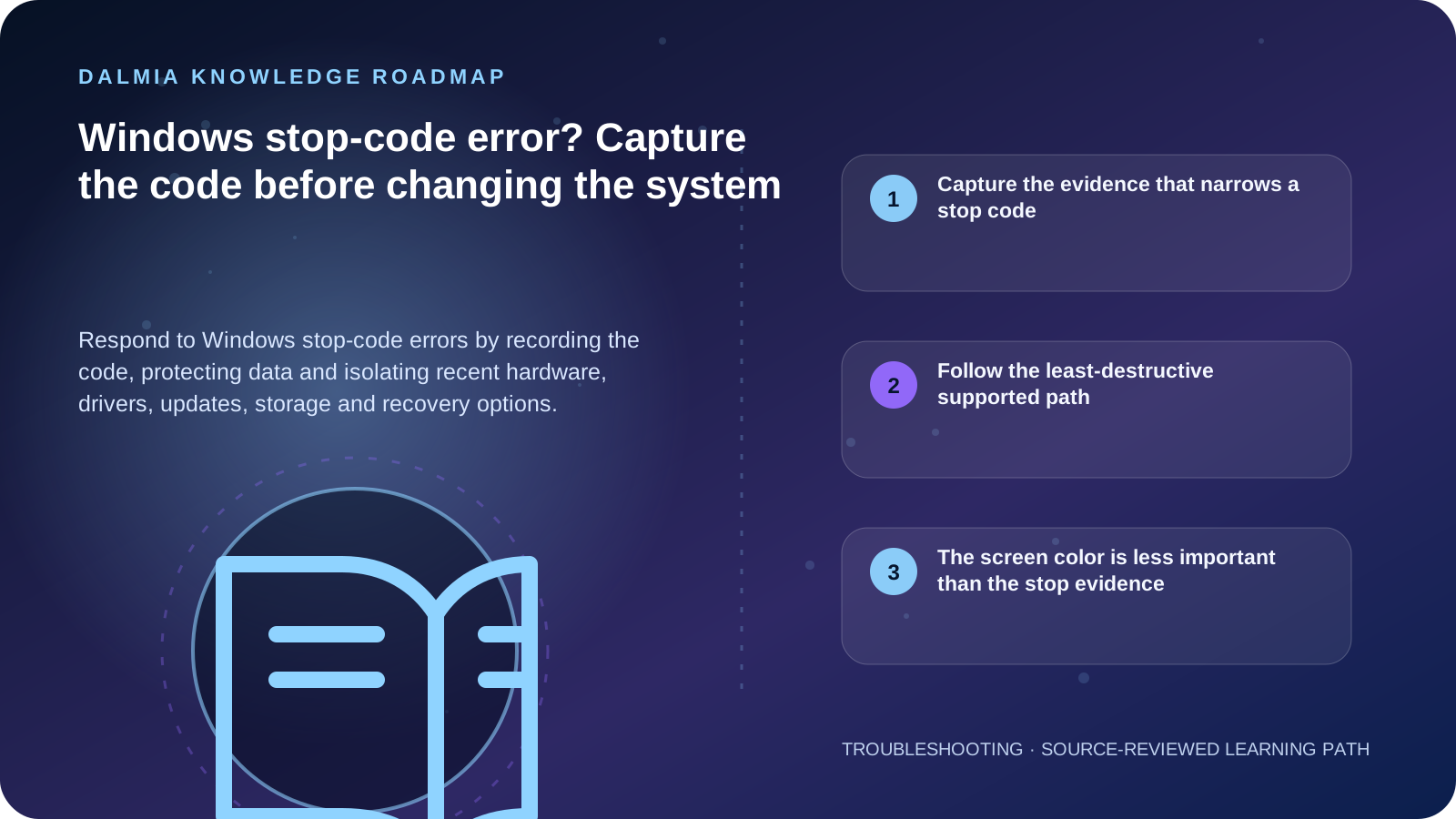
Capture the evidence that narrows a stop code
| Pattern | Record | Investigate next |
|---|---|---|
| One restart, then stable | Code, time and active task | Back up, update and monitor before invasive work |
| Repeats after new hardware | Device, installation time and code | Shut down and use the supported removal or compatibility path |
| Repeats after a driver or update | Update history, device and “What failed” | Safe mode, supported update, rollback or recovery option |
| Occurs during heavy load with heat | Workload, fan behavior and thermal errors | Thermal diagnosis before more stress testing |
| Occurs with drive errors or missing storage | Disk status, noises and backup state | Protect data and stop destructive disk actions |
Follow the least-destructive supported path
- Record the stop code, module name, time, affected task and recent hardware, driver, software or update change.
- If Windows starts normally, back up important files and check supported Windows and device-manufacturer updates.
- Confirm adequate free storage and review Device Manager for a device error associated with the incident.
- If the error repeats, use the supported safe-mode path to compare behavior without normal startup software and drivers.
- Remove newly added external hardware or reverse a recent change only through the exact device and Windows guidance.
- Choose System Restore, Startup Repair or another Windows recovery option only when it matches the scenario and the consequences are understood.
- Escalate with the code, frequency, recent changes and tests when the system will not start, data is at risk or the error persists.
The screen color is less important than the stop evidence
Microsoft now describes these failures as unexpected restarts and stop-code errors; the screen may be blue or black depending on the Windows version. A hardware device, driver or software can be involved, so the code and change history are more useful than the color.
A repeated generic reset can hide the original trigger and may erase recovery context. Keep a record of each code and do not assume every stop code has the same fix.
Sources and further reading
Technical statements were reviewed against these references. External pages may change after our review date.
- Troubleshooting Windows unexpected restarts and stop code errors — Microsoft Support
- Device performance and health in the Windows Security app — Microsoft Support