
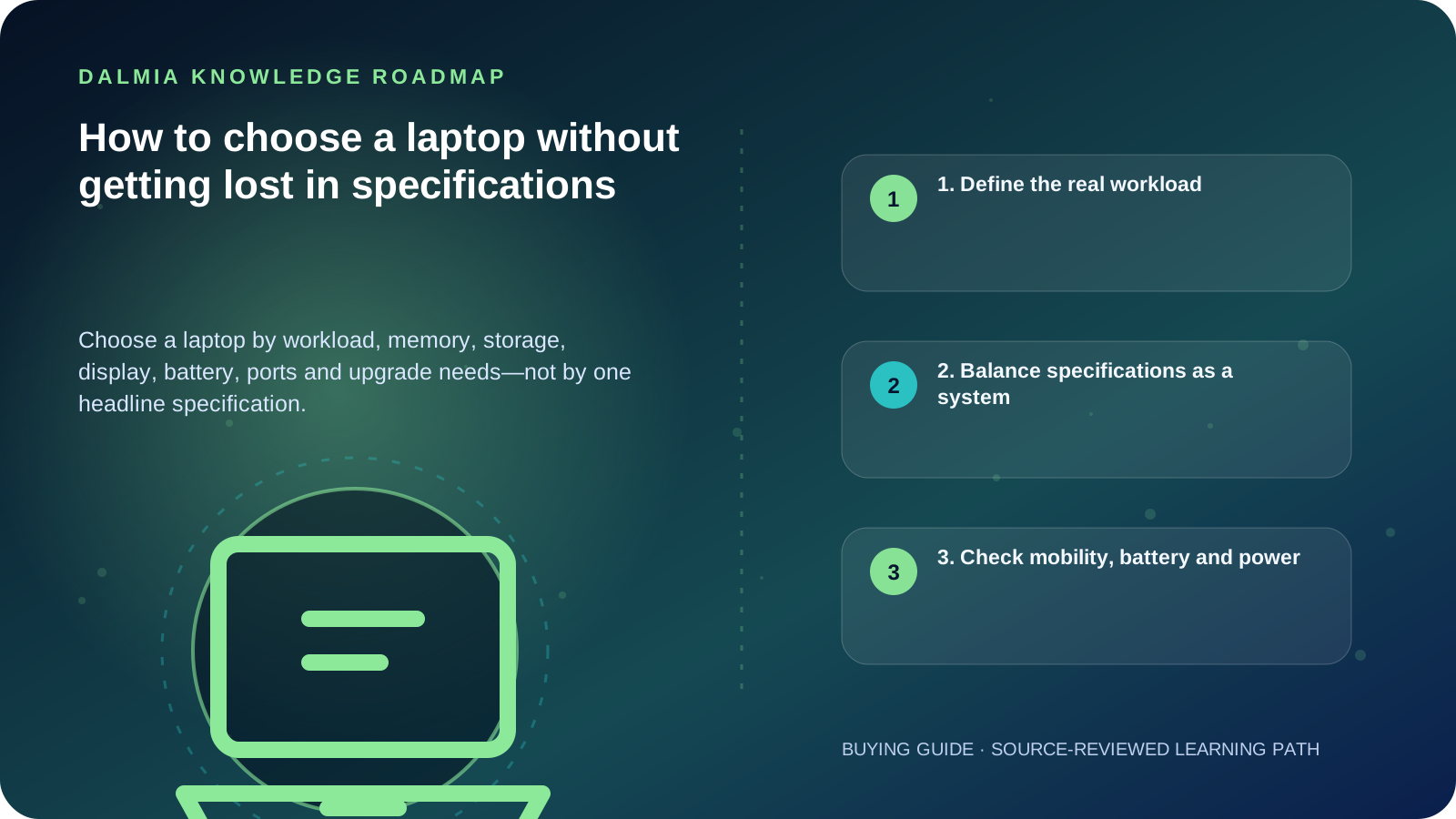
Choose the workload first, not the model name. List the applications you use, decide how portable the laptop must be, then balance processor class, RAM, storage, display, battery, ports, upgradeability and support. Verify the exact configuration before buying because similarly named models can contain different parts.
1. Define the real workload
Write down the programs, browser-tab load, file sizes and peripherals you use. A student preparing documents has a different sustained workload from a video editor, software developer or 3D designer.
Also decide whether the laptop travels daily, stays mostly on a desk or must connect to existing monitors, projectors, printers or network equipment. This prevents paying for power you will not use while missing a port or feature you need every day.
- Study and everyday work: documents, classes, browsing and video calls
- Business: spreadsheets, accounting, browser tools, meetings and security controls
- Development: compilers, containers, virtual machines and multiple displays
- Creative work: large media files, colour-sensitive display work and sustained processing
- Gaming or 3D: graphics performance, cooling capacity and power delivery
2. Balance specifications as a system
Processor names alone do not describe the complete experience. Generation, power class, cooling and the application can change real performance. RAM influences how much active work stays responsive, while storage capacity and storage type affect space and loading behaviour.
Treat memory and storage recommendations as workload-dependent starting points. Check the official requirements of critical software and leave reasonable headroom for updates, working files and future needs.
| Area | Ask this | Why it matters |
|---|---|---|
| Processor | Which applications and sustained tasks? | Short bursts and long workloads stress a system differently. |
| RAM | How many demanding apps or files stay open? | Insufficient working memory can force slower storage use. |
| Storage | How large are apps, media and backups? | Capacity and interface must both fit the workload. |
| Display | Is colour, text clarity or refresh important? | The screen is the component you continuously use. |
| Ports | Which monitor, drive, printer or network cable? | Adapters add cost and may not replace every native function. |
| Cooling | Will the workload run for long periods? | Sustained work depends on thermal design, not only chip labels. |
3. Check mobility, battery and power
Battery runtime claims depend on workload, brightness, wireless activity, battery size, software and power settings. Compare test conditions rather than treating one advertised number as universal.
Microsoft advises avoiding excessive heat and using smart charging where the device supports it. ENERGY STAR criteria evaluate efficiency across operating modes and power-management features, which is useful context when energy consumption matters.
- Carry weight includes the charger and any required adapters
- USB-C does not automatically mean the port supports charging, display output or every data speed
- A replacement charger must match the device's supported voltage, connector and power requirements
- Battery health changes with age, heat and usage, so future serviceability matters
4. Final pre-purchase checklist
- Record the exact model or configuration code—not only the series name.
- Confirm processor, RAM, storage type/capacity, display resolution and operating system.
- Check whether RAM or storage is replaceable, expandable or soldered.
- Verify the ports against your current monitor, printer, drive, network and charger.
- Confirm warranty route, included accessories and any setup requirement.
- Ask for current stock, price and offer confirmation before committing.
Sources and further reading
Technical statements were reviewed against these references. External pages may change after our review date.
- Computers — ENERGY STAR
- Caring for your battery in Windows — Microsoft Support
- Device performance and health in the Windows Security app — Microsoft Support